
Concepts: Sketch, Note, Draw
TopHatch, Inc.Art & Design
4.41.44K Reviews
- Version
- 2026.06.4
- Installs
- 5.00M
- Age Rating
- Everyone
Screenshots
Our Review of Concepts: Sketch, Note, Draw
 Analysis by Appyee
Ever found yourself endlessly doodling on scraps of paper during meetings or sketching out your next big idea on a napkin? Well, those days are over, folks! Let me introduce you to Concepts: Sketch, Note, Draw, an app that’s like having a digital notebook right on your phone. Whether you’re an artist, a designer, or just someone who likes to jot down thoughts on the go, this app's got something for everyone.
Getting Started with Concepts
When you first open Concepts: Sketch, Note, Draw, you’re greeted with a clean and intuitive interface. It’s kind of like stepping into a blank canvas where your ideas can run wild. The app is available for both Android and iOS, so no matter what device you’re using, you’re covered. It’s super user-friendly, even for those who might not consider themselves tech-savvy.
The initial setup is a breeze. You don’t need to jump through hoops to get started. Just download it, and you’re all set to dive into your creative projects. And let me tell you, the versatility here is off the charts! Whether you want to sketch, take notes, or draw, this app gives you the tools to do it all.
Features That Make Creativity Flow
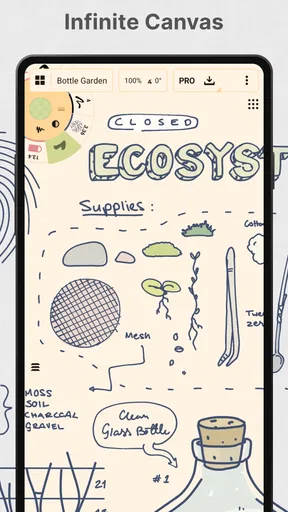
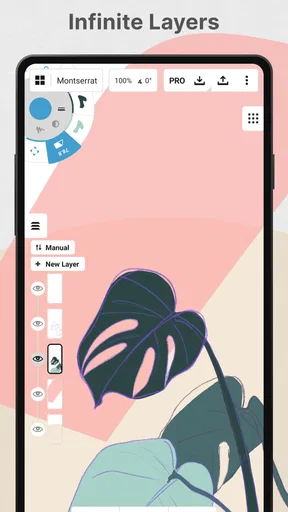
Now, let’s talk features. One of the things I absolutely love is the infinite canvas. You know how annoying it is when you run out of space on paper? Well, with Concepts, that’s a problem of the past. You can keep expanding your ideas without limits, which is perfect for brainstorming sessions.
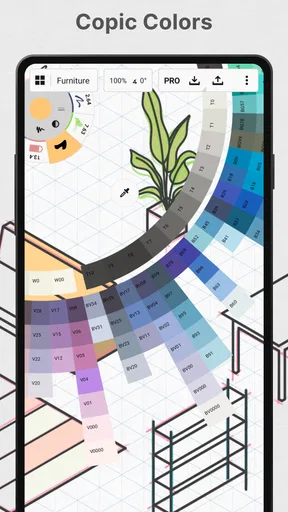
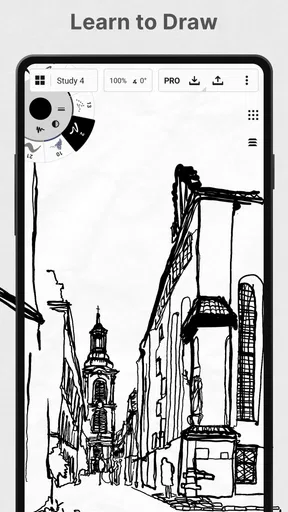
The app also offers a wide variety of pens, pencils, and brushes. You can adjust the color, opacity, and size to suit whatever you’re working on. It’s like having an entire art supply store in your pocket! And if you make a mistake, the undo feature is just a tap away. It’s forgiving, which is a big plus for experimentation.
Design and Usability
One of the standout aspects of Concepts is its design. It’s sleek, modern, and doesn’t overwhelm you with options. Everything is laid out logically, so you can focus on what really matters: your work. The learning curve is minimal, and the app runs smoothly, even on older devices.
Usability is a big deal, especially when you’re trying to capture an idea quickly. Concepts nails it with intuitive gestures and shortcuts. You can easily zoom in and out, rotate the canvas, and move elements around with a swipe of your fingers. It doesn’t matter if you’re using a stylus or your fingers; the app is highly responsive and accurate.
Customizability and Integration
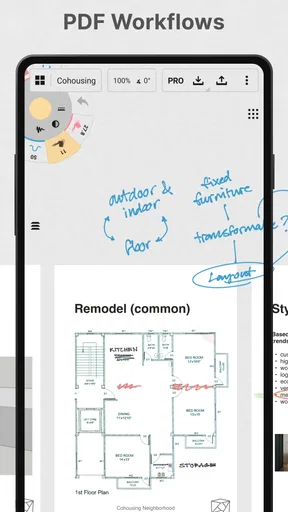
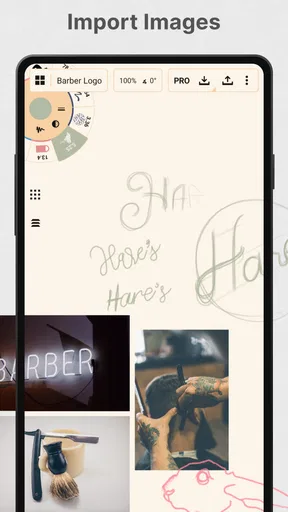
Another cool feature is how customizable everything is. You can set up your workspace to match your workflow, which is a game-changer. Plus, it integrates seamlessly with other apps and platforms. Whether you want to export your masterpiece to Photoshop or share notes with your team, Concepts has got your back.
And speaking of teams, this app is fantastic for collaboration. You can share your projects with others and work together in real-time. It’s perfect for remote teams or anyone who likes to get feedback on their work.
From a quick thought to a useful sketch
The infinite canvas is most valuable when the idea is still changing. I’d use one drawing to map a room layout, add rough furniture shapes, and jot measurements or reminders beside them, rather than splitting the thought across a sketchbook and a notes app. The extra room lets me spread alternatives out and compare them at a glance. It is less useful for a finished page that needs a fixed layout; in that case, a page-based drawing or note app may feel more deliberate.
For a practical routine, I’d keep a separate canvas for each project and leave open space around the central drawing for revisions and questions. When planning a small garden, for example, I could sketch the beds, mark the sunny areas, and place a few possible paths nearby. I would keep the first pass loose instead of polishing every line. That makes it easier to move from a rough idea to a clearer plan without treating an early guess as final.
Speed, busy canvases, and recovery
In everyday use, the gestures make it easy to move around a drawing without stopping to think about navigation. That matters more than raw speed when I’m capturing a passing thought: I can zoom into one detail, then pull back to see how it relates to the rest. A stylus can make precise marks feel more natural, while a finger is convenient for quick notes. The best choice depends on whether accuracy or always having a tool at hand matters more to you.
A large canvas can also become harder to manage, even when there is room to keep adding ideas. I’d avoid scattering unrelated projects across one sprawling drawing. Instead, group related notes near the sketches they explain and leave visual breathing room between alternatives. This is a simple way to keep a brainstorm readable later, when you may no longer remember why a particular mark was important.
Undo is reassuring while experimenting, but I wouldn’t treat it as a substitute for a sensible workflow. Before making a sweeping change to a design, I’d pause and consider whether a separate alternative would be easier to compare with the original. That approach is especially useful for concept work, where keeping two competing versions visible can be more helpful than repeatedly undoing and redrawing.
Who will get the most from it?
I’d recommend this drawing and planning app to people who think visually: illustrators exploring compositions, students arranging ideas, designers making early concept sketches, and anyone who likes handwritten notes beside diagrams. It can also suit everyday planning, from mapping a rearranged room to laying out a project with connected steps. The useful distinction is that the canvas supports both marks and thinking; it does not require every drawing to become polished artwork.
If your main need is long-form typed notes, a conventional notes app is likely the more comfortable choice. If you need a polished image-editing workflow with detailed finishing tools, a dedicated art program may suit you better. And if your work depends on a fixed page size, forms, or structured documents, the freedom of an open canvas may feel less organized than a page-based alternative. I see Concepts as strongest in the uncertain stage, when you are deciding what an idea should become.
Compared with paper, the advantage is room to navigate, adjustable marks, and a quick way to correct experiments; paper still wins for people who prefer a tactile surface and no screen between them and the page. Compared with a basic notes app, this is a better fit when arrows, shapes, and spatial relationships matter. The trade-off is that open-ended drawing can take more effort to keep tidy than a list or a neatly formatted document.
Cost, device fit, and expectations
Concepts is a free app from TopHatch, Inc., with in-app purchases ranging from $1.99 to $29.99 per item. I’d start with the free option and first decide whether the canvas and drawing tools fit the way I actually work; there is little benefit in paying for extras before a real project reveals what is missing. It has an Everyone age rating, a 4.2 average from around 23,000 ratings, and more than 5 million installs, so it has reached a broad audience without that being a guarantee that it will suit every workflow.
The app first arrived on November 16, 2018, and its current version is 2026.01.1. Android support starts at version 8.0. Those details are worth checking against your own device before committing to a regular workflow, especially if you plan to work on complex canvases. I wouldn’t assume every device will feel equally responsive: screen size, available resources, and whether you are drawing with a finger or stylus can all affect comfort. If a canvas starts to feel crowded or navigation becomes distracting, simplifying the drawing may help more than adding still more detail.
My performance verdict
Overall, Concepts is a thoughtful choice when I want one flexible place to sketch, annotate, and arrange ideas without being boxed into a sheet of paper. Its strongest quality is not simply that the canvas keeps going; it is that the room to move around encourages me to explore alternatives before settling on one. I’d choose it for rough plans, visual notes, and early design thinking, but I would not make it my first pick for typed notes or a highly structured final document.
There is a small discipline required to get the best from that freedom: keep projects distinct, leave space for revisions, and use a separate comparison when two directions both deserve a fair look. If that sounds like a natural way to work, the free starting point makes it easy to see whether the approach clicks for you. For me, it is most useful when an idea is still taking shape and I need a canvas that can keep up with the thinking.
Final Thoughts
So, what’s the verdict? Concepts is an absolute gem for anyone looking to unleash their creativity. It’s packed with features that cater to both professionals and hobbyists alike. Whether you’re sketching out a design, taking detailed notes, or just doodling for fun, this app is your new best friend.
If you’re still on the fence, just give it a try. The basic version is free, and there are in-app purchases if you decide you want to unlock more features. But even the free version is more than enough to get you started on your creative journey. So go ahead, download Concepts, and let your imagination run wild!
Verdict
Strengths of Concepts: Sketch, Note, Draw
- Intuitive interface for quick sketches.
- Seamless integration with cloud storage.
- Wide range of drawing tools available.
- Supports high-resolution exports.
- Customizable canvas sizes for projects.
Limitations of Concepts: Sketch, Note, Draw
- Limited color palette options available.
- Occasional lag with complex drawings.
- No offline mode for cloud saving.
- Lacks advanced editing features.
- Ads can be intrusive during use.
Similar Picks in This Category
View All
Canva: AI Photo & Video Editor
Canva4.8

PENUP – Drawing-sharing SNS
Samsung Electronics Co., Ltd.4.5

Crafto
Kutumb App4.6

Sketchbook
Sketchbook4.1

ibis Paint X
ibis inc.4.5

Adobe Express: AI Photo, Video
Adobe4.6
Frequently Asked Questions
What features does Concepts offer for sketching and drawing?
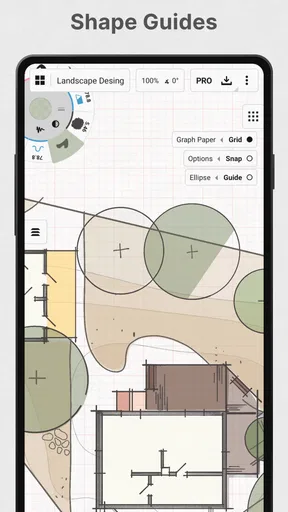
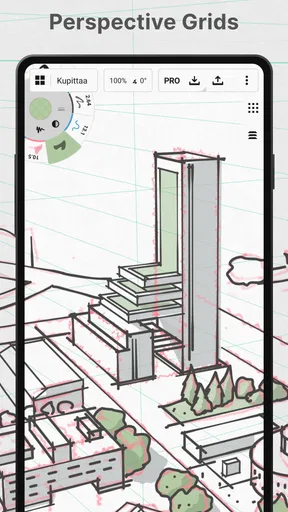
Concepts provides a versatile platform for sketching and drawing with features like infinite canvas, precision tools, and a wide range of brushes and pens. It also supports vector-based drawing, allowing for easy resizing and editing. The app’s user-friendly interface makes it suitable for both beginners and professionals.
Is Concepts available on both Android and iOS devices?
Yes, Concepts is available on both Android and iOS devices. This cross-platform availability ensures that users can access their projects and continue their work seamlessly on different devices. It also offers cloud sync options, making it easy to manage and back up your work across platforms.
Does Concepts support collaboration and sharing features?
Concepts allows users to collaborate by sharing their sketches and drawings with others. You can export your work in various formats like PDF, SVG, and PNG. The app also offers integration with cloud services, making it convenient to share and collaborate with team members or clients.
Are there any in-app purchases or subscriptions in Concepts?
While Concepts is free to download, it offers in-app purchases and subscription options for advanced features. These include premium tools, additional brush packs, and professional-grade features. The subscription model allows users to choose a plan that best suits their needs, whether for personal use or professional projects.
What are the system requirements for installing Concepts?
Concepts requires a device running on a minimum of Android 7.0 or iOS 12.0. It is optimized for both smartphones and tablets, providing a smooth experience on larger screens. Ensure your device has sufficient storage and RAM to handle the app’s features efficiently for the best performance.
